
How to create a Connect for Health Colorado account
Five quick steps to create your account, then add Julia Wiswell as your broker.
You will need to add our agency owner, Julia Wiswell, as the broker on your account even if you are working with another broker in our office. Questions? Email contact@wiswellinsurance.com.
Step 1
Go to Connect for Health Colorado
Open connectforhealthco.com and click Login in the top right corner.
Open Connect for Health Colorado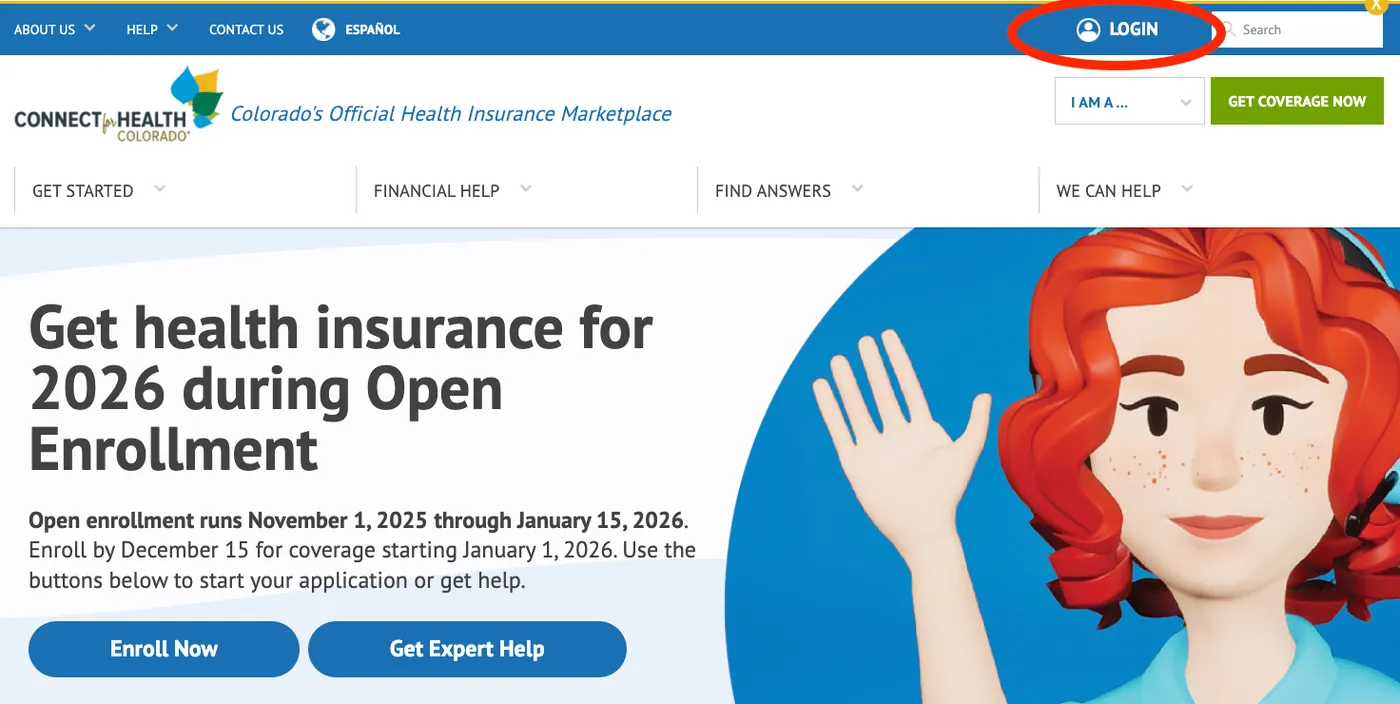
Step 2
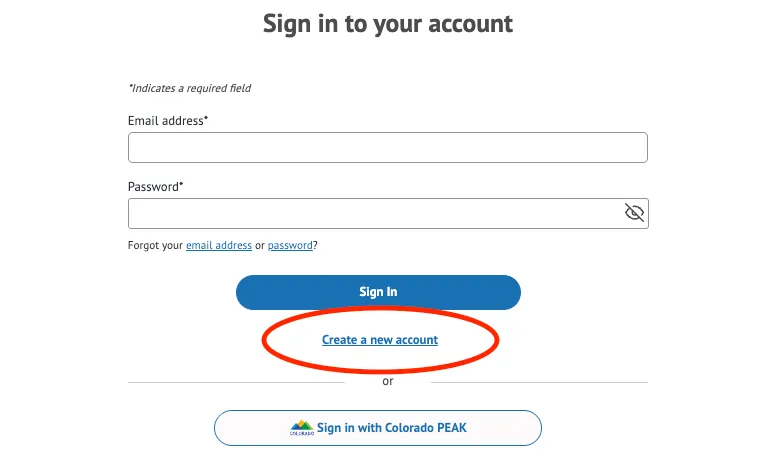
Choose create a new account
On the login screen, click the link to create a new account.
Step 3
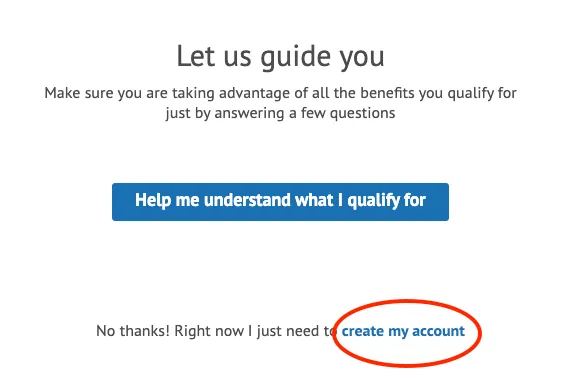
Skip ahead to account creation
Scroll to where it says "No thanks! Right now I just need to create my account." and click the create my account link.
Step 4
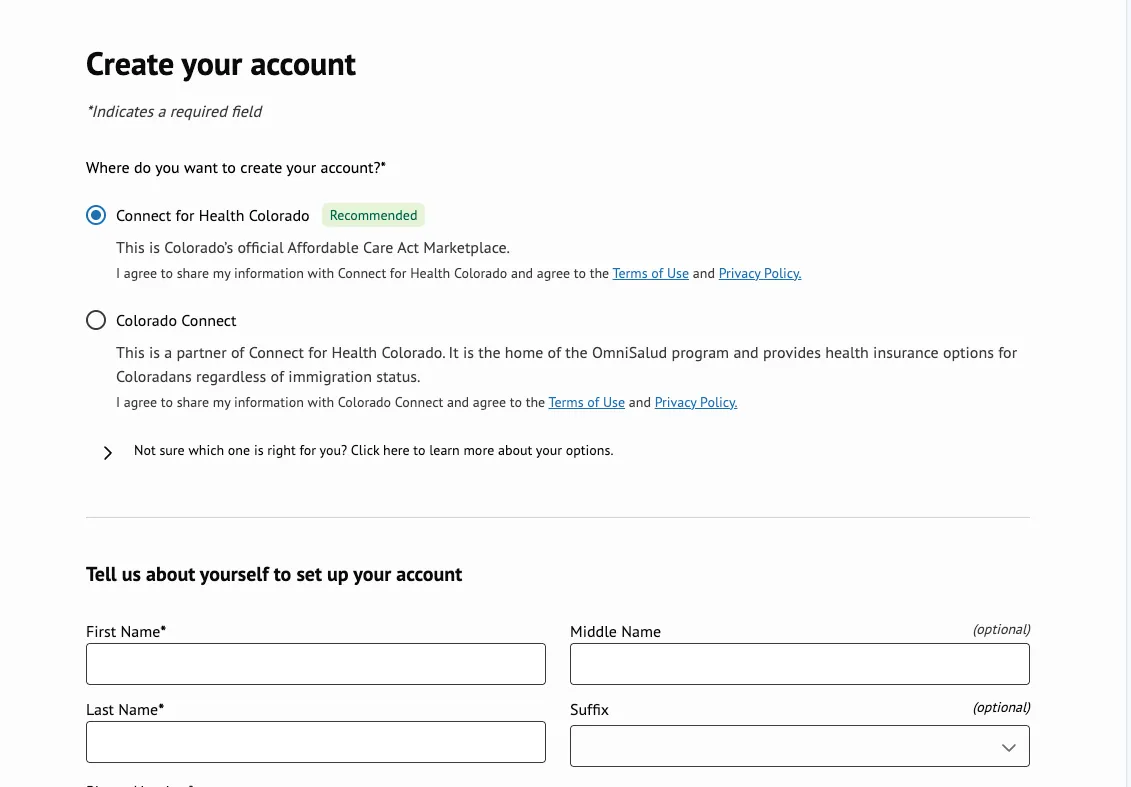
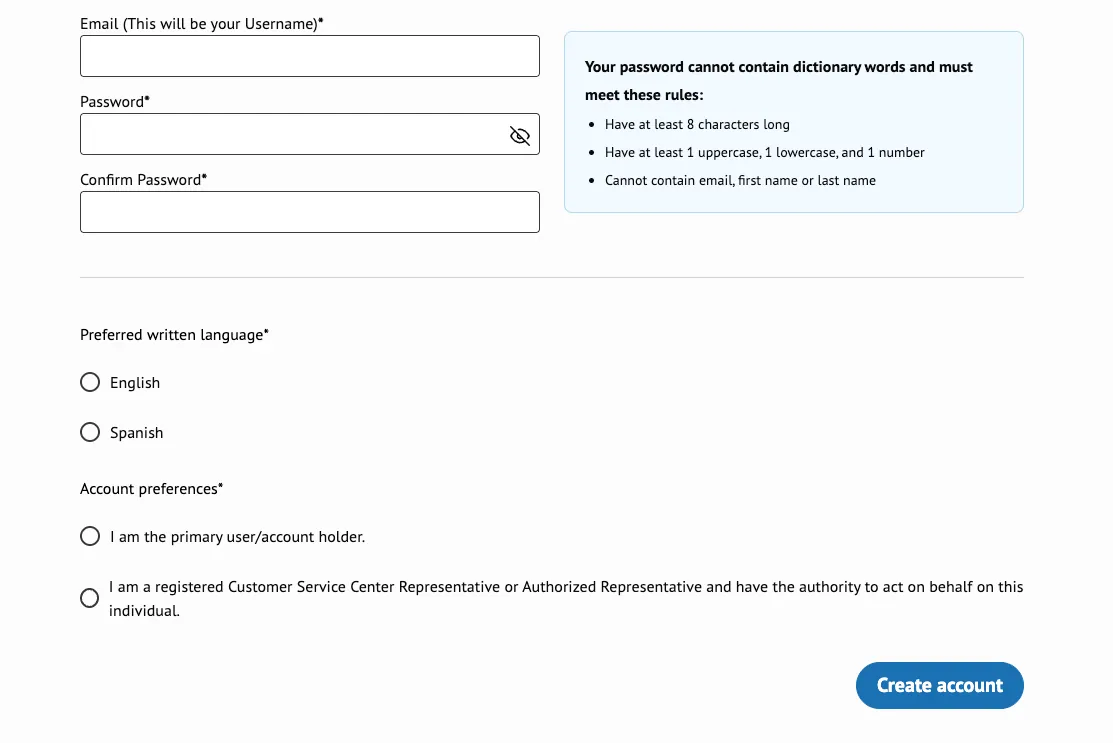
Enter your information
Fill in the requested information and select the radio button next to Connect for Health Colorado.
Step 5
Finish creating your account
Select your language preference, check the radio button next to I am the primary user/account holder, then click Create account.
Account created?
Finish by authorizing Julia Wiswell as your broker so we can help with your application and changes.
Add Wiswell as your brokerTalk with a Wiswell broker
There is no cost to work with us. Tell us what you need and we will walk you through every option.